Your context, finally reusable

Save it once. Use it everywhere.

Save prompts and chats from ChatGPT, Claude, Gemini, Grok, and Perplexity. Type // or /// to reuse them anywhere, then export to Notion, Gemini Notebook, or Markdown.

  • Local-first
  • No account needed to start
  • Works across AI tools

A practical look at the complete workflow.Open on YouTube ↗

One library across the tools you already use

  • ChatGPT
  • Claude
  • Gemini
  • Grok
  • Perplexity

A better working memory

One workspace. Five useful moves.

Capture what matters, shape it into something reusable, and put it back to work without breaking your flow.

01

Type //. Your prompt is there.

In ChatGPT, Claude, Gemini, Grok, or Perplexity, type // to search your saved prompts and drop one in. Type /// to bring a past chat back as context.

  • // inserts saved prompts and templates
  • /// attaches a saved chat as context
  • Refine, Create, Library, and Save, right in the composer

02

Capture context, not clutter

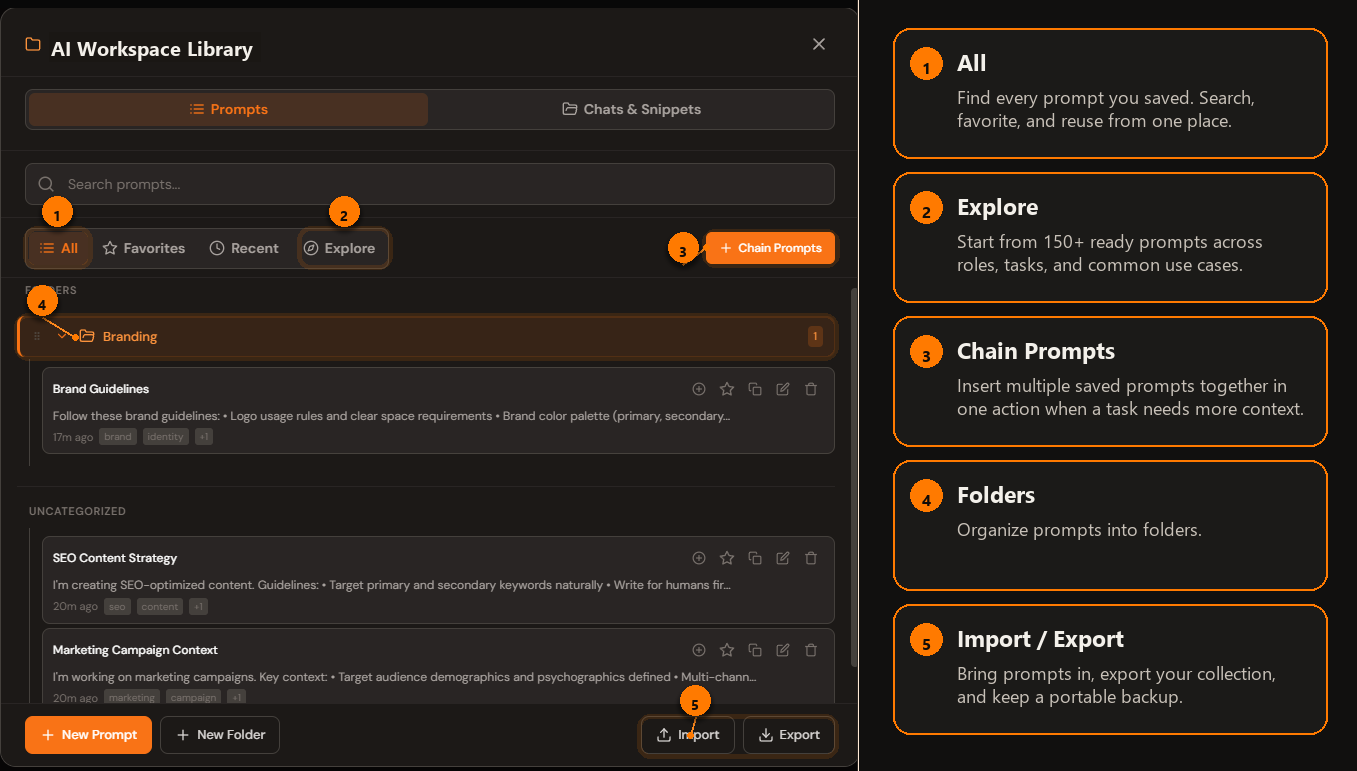
Save full conversations from ChatGPT, Claude, Gemini, and Grok—or keep a useful snippet from any web page. Everything stays searchable and organized locally.

  • Prompts, chats, snippets, and pages
  • Folders that follow your projects
AI Workspace prompt library

03

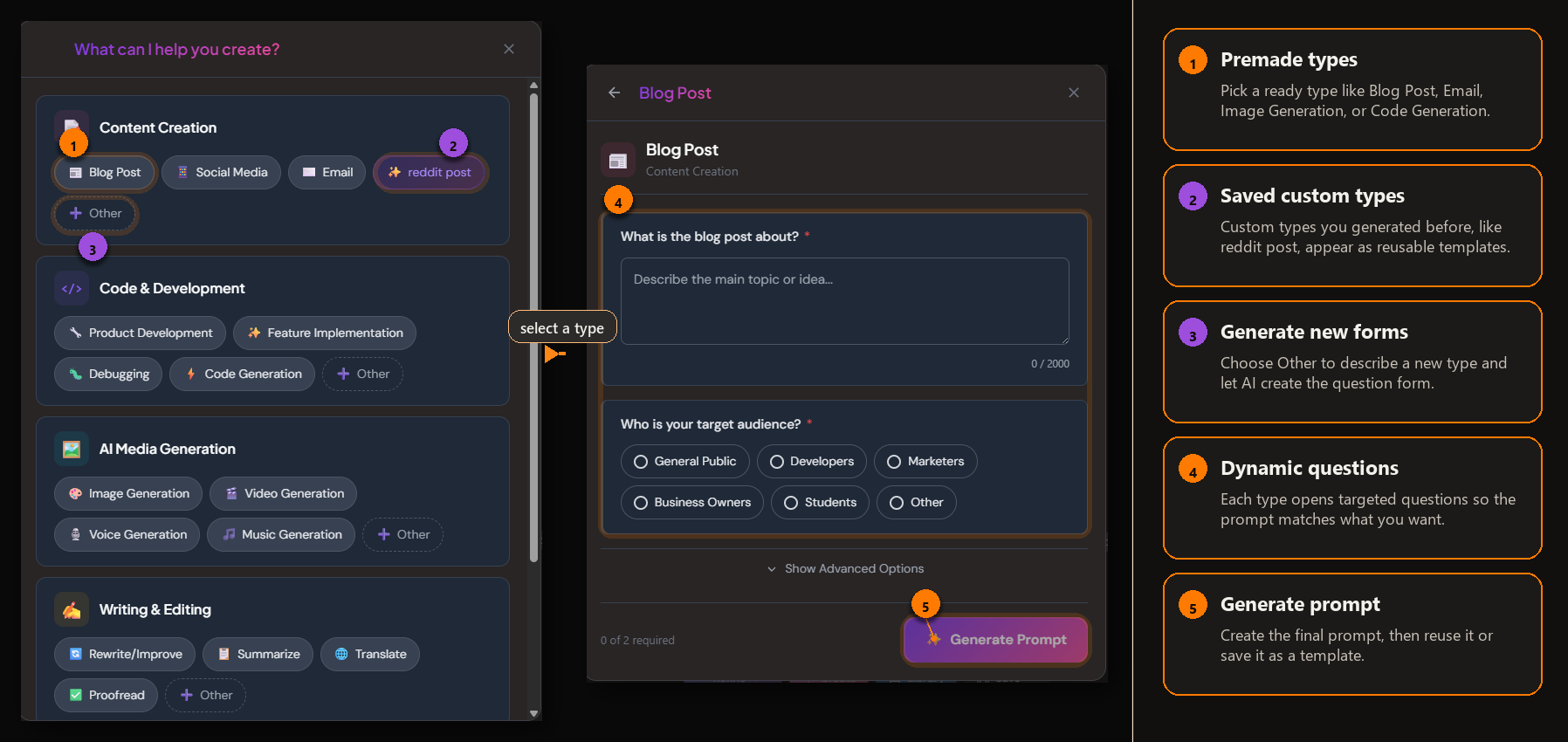
Turn ideas into reusable prompts

Build stronger prompts with a guided flow, then save them as templates with fillable variables.

Guided prompt creation flow

04

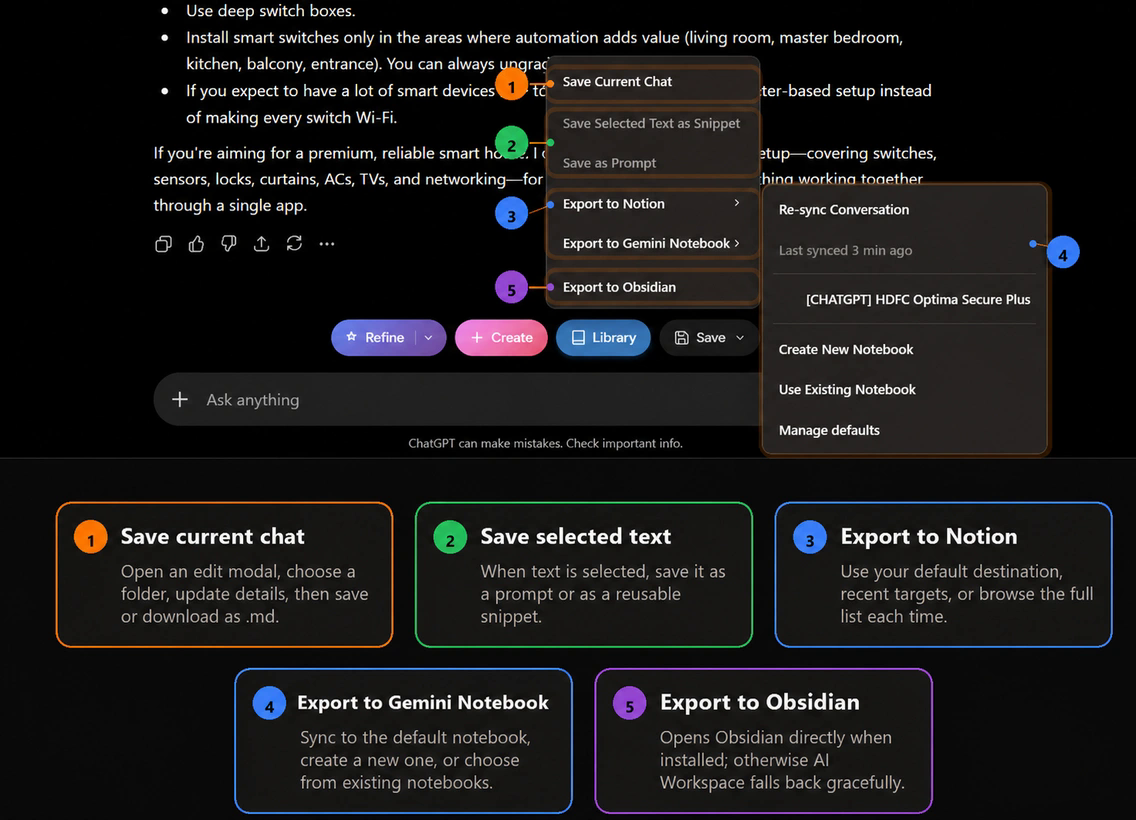
Send your work where it belongs

Export to Notion, Gemini Notebook, Obsidian, Markdown, or JSON when your context needs a life beyond the browser.

Export options in AI Workspace

05

Share a prompt pack with one link

Turn a prompt, or a whole folder, into a link anyone can open. They add it to their own library in one click, and the link can stay updated as you edit.

  • Share one prompt or a whole folder as a pack
  • Keep the link updated as you edit, or revoke it anytime
  • Recipients add it to their library in one click

Designed around ownership

“Your best AI work should become part of your own toolkit—not disappear into another tab.”

AI Workspace starts local, so you can build a useful personal library before deciding whether you need sync or advanced exports.

Compare plans

Straightforward pricing

Start free. Upgrade once.

Build your local library at no cost. Pay once when you want sync, deeper organization, and unlimited exports.

Free

Local Library

$0forever

Everything you need to build a genuinely useful library on one device.

  • Unlimited local prompts and templates
  • Unlimited manually saved chats
  • Insert prompts anywhere
  • Limited Notion and Gemini Notebook exports
Install for free

Purchase Lifetime securely from the signed-in extension. AI credits are consumed only by optional AI-powered actions and remain available until used.

Questions, answered

Know what stays local—and what you get.

The essentials about supported AI tools, storage, accounts, exports, pricing, and optional AI features.

Explore practical guides
What is AI Workspace?

AI Workspace is a Chrome extension for saving, organizing, and reusing prompts, chats, snippets, and web context without leaving the AI tools where you work.

Which AI tools does it support?

AI Workspace works across popular AI sites including ChatGPT, Claude, Gemini, Grok, and Perplexity. Available actions can vary by site.

Is my content stored locally?

Your saved chats, snippets, and context files stay in extension-owned storage on your device. Prompt-library sync is optional and separate from locally saved conversation content.

Do I need an account?

No account is needed to start using the free local library. An account is required for features such as prompt sync, purchases, and account-based entitlements.

What is included for free?

The free plan includes unlimited local prompts and templates, unlimited manually saved chats, prompt insertion, and limited external exports.

What does Lifetime Workspace include?

Lifetime Workspace is a one-time upgrade with prompt sync, unlimited folders, unlimited supported exports, direct and bulk Gemini Notebook actions, and 500 included AI credits.

What are AI credits used for?

Credits are used only when you choose optional AI-powered actions such as prompt refinement or generation. Saving, organizing, and inserting your existing content does not consume AI credits.

Where can I export my work?

Depending on the workflow, you can export or send saved work to Notion, Gemini Notebook, Obsidian, Markdown, or JSON.

Keep the useful parts

Make every AI conversation build on the last.

Add AI Workspace to Chrome