
Why keep AI chats in Obsidian
An AI chat history lives inside each platform, split across ChatGPT, Claude, and Gemini, and it is hard to search across all of them. A note in your vault sits next to your own writing. You can link it to a project note, tag it, and find it with the same search you already use.
Because each note is a Markdown file on your disk, it also works with backups, sync, and version control without any extra step.
Choose what belongs in your vault
Save conversations that you will come back to: research summaries, working code and the debugging that led to it, plans and specifications, and prompts that produced good results. Skip routine questions whose answers are easy to get again. A vault full of throwaway chats is harder to use, not easier.
Send a chat to Obsidian with AI Workspace
AI Workspace is a Chrome extension that adds a save and export menu to ChatGPT, Claude, Gemini, Grok, and Perplexity. Obsidian is one of its export destinations.
- Install AI Workspace and make sure the Obsidian desktop app is installed with a vault open.
- Open the conversation and choose Export to Obsidian from the Save menu. You can export the whole chat or only the text you selected.
- AI Workspace converts the chat to Markdown, copies it to your clipboard, and opens Obsidian through its app link.
- Obsidian creates a new note named after the chat title in the vault it opens, using the copied Markdown as the note body.
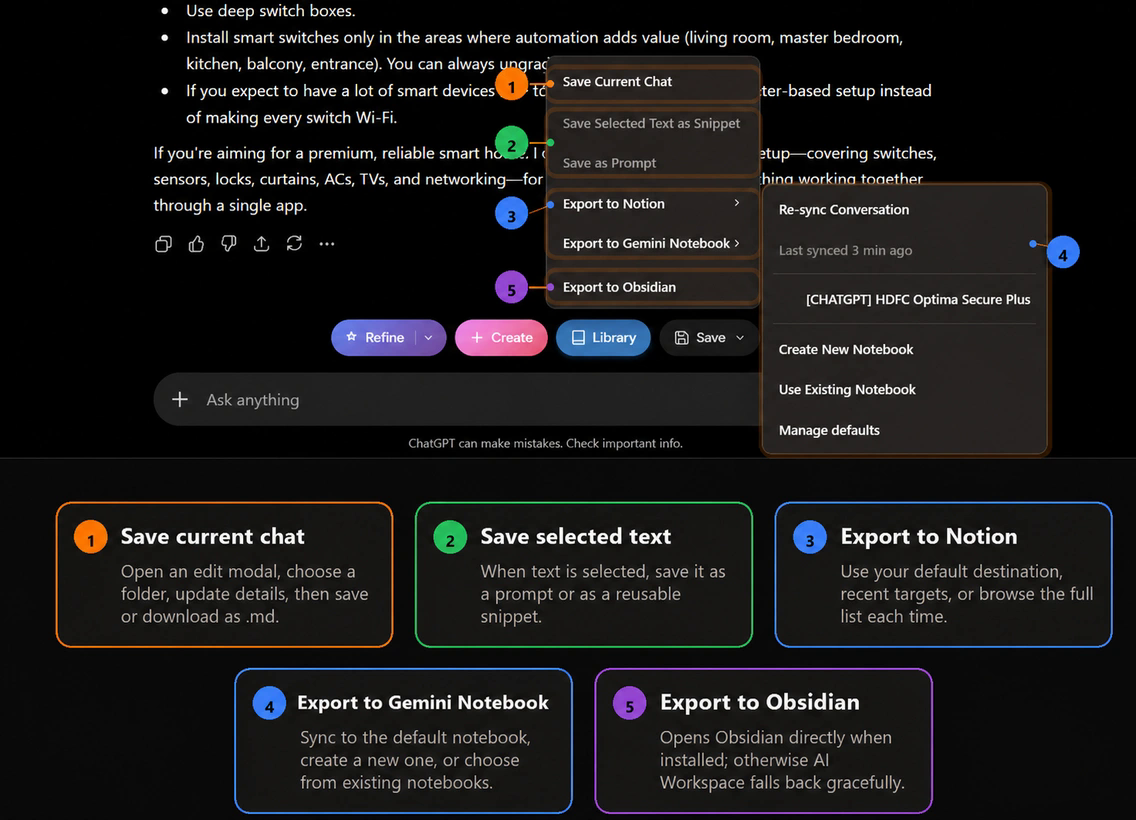
Chrome cannot confirm that Obsidian is installed, so AI Workspace cannot either. If the app does not open, check that Obsidian is installed and has a vault, then try again. The Markdown is still on your clipboard, so you can paste it into a new note by hand.
To keep only part of a conversation, select the text, right-click, and choose Send selection to Obsidian under the AI Workspace menu.
Or download Markdown into your vault folder
If you prefer to manage files yourself, use Export Markdown to download a .md file and move it into your vault folder. Obsidian picks up new files in the vault automatically. This also suits people who keep their vault in a synced or version-controlled folder and want to decide exactly where each note goes.
For more on structuring Markdown archives, see how to export AI chats to Markdown.
Organize AI notes in the vault
- Keep AI conversations in one folder, or inside the project folder they belong to.
- Rename the note if the chat title will not make sense in six months.
- Add a short summary at the top of long transcripts.
- Link the note from the project or decision note it informed.
- Remove secrets and personal data before the note goes into a synced vault.
Free and Lifetime limits
Sending a chat to Obsidian counts as an external export, alongside Notion and Gemini Notebook. The free plan includes a limited number of external exports, and AI Workspace asks you to confirm the first time you use one on Obsidian. Lifetime Workspace is a one-time $59.99 upgrade with unlimited supported exports, prompt sync, and unlimited folders. See pricing for details.
Working in a shared workspace instead? Read exporting AI conversations to Notion. To ask questions across several chats, see exporting chats to NotebookLM.
Build an AI notes archive in Obsidian
Save ChatGPT, Claude, and Gemini conversations and send them to your vault as Markdown.
Add AI Workspace to Chrome