
Why put AI chats into NotebookLM
A research thread in ChatGPT, a long planning session in Claude, or a Gemini conversation about a document can each hold findings you will want to question later. As a source in Gemini Notebook (NotebookLM), that conversation sits next to your PDFs, docs, and links, and NotebookLM can cite it when it answers.
This works best for conversations with durable content: research summaries, interview notes, specifications, study material, and decisions with their reasoning. Short, throwaway chats add noise to a notebook.
The manual way, and where it breaks
Without an extension, you select the conversation, copy it, open NotebookLM, choose to add a source, pick pasted text, and paste. That is workable for one short chat. It gets tedious when the chat is long, when you want several chats in the same notebook, or when you later need to update a source after the conversation continued.
Copying from the page also tends to pull in interface text such as buttons and labels, and it does not mark clearly which turns came from you and which came from the assistant.
Send a chat with AI Workspace
AI Workspace is a Chrome extension that adds a save and export menu to ChatGPT, Claude, Gemini, Grok, and Perplexity. In the extension the destination is called Gemini Notebook (NotebookLM).
- Install AI Workspace and open the conversation you want to keep.
- Sign in to NotebookLM in the same Chrome profile. AI Workspace uses your existing browser session; if it cannot reach Gemini Notebook, it asks you to open it and sign in, or to enable its site access.
- Open the Save menu next to the chat input and choose Export to Gemini Notebook. You can export the whole chat or only the text you selected.
- Pick an existing notebook, or create a new notebook with a title of your choice.
- The chat is added to that notebook as a text source. Use Open notebook to check it.
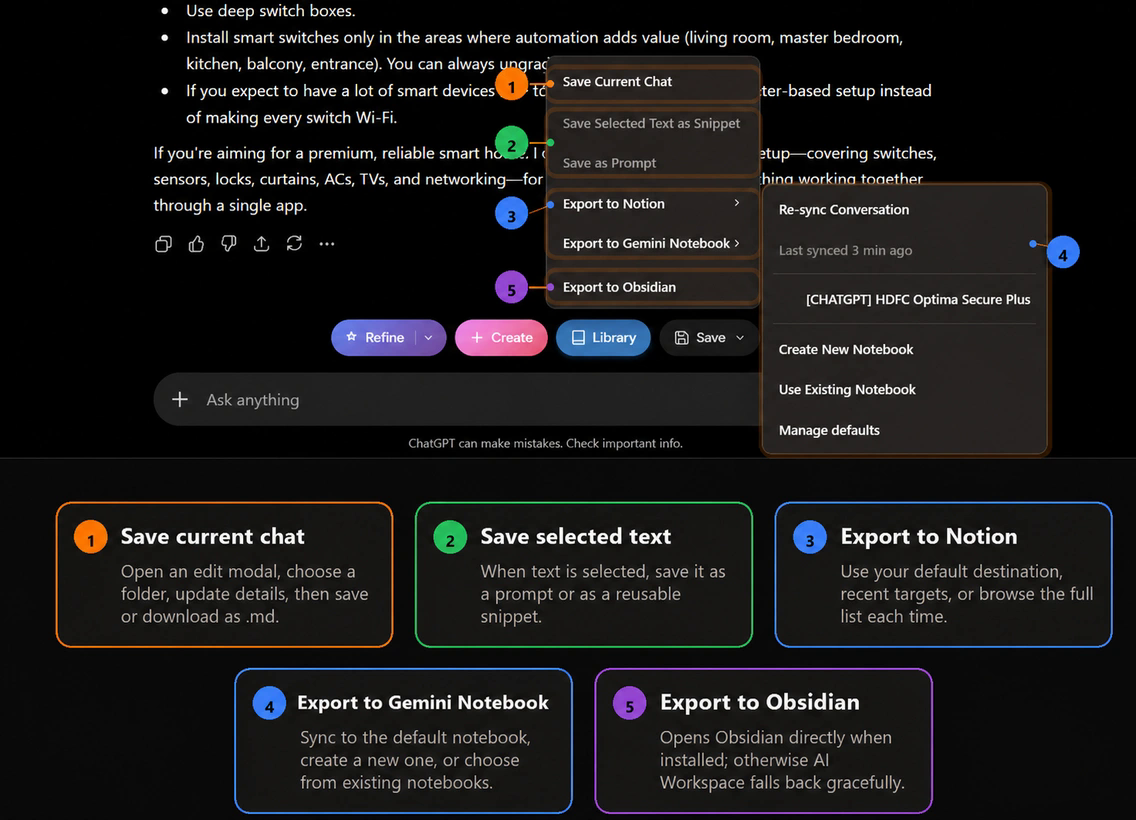
Select text on the page and right-click to find Send selection to Gemini Notebook under the AI Workspace menu. This is useful when only one answer in a long thread is worth keeping.
Add many saved chats to one notebook
Chats you save in AI Workspace stay in a local library on your device. When a notebook is open in NotebookLM, AI Workspace can bulk add saved chats and snippets to it, with one source per chat or snippet. This is handy for building a research notebook from a week of conversations across different AI tools.
Direct and bulk Gemini Notebook actions are part of Lifetime Workspace. The free plan includes a one-time sample of up to three sources so you can try it first.
Keep sources current
Conversations keep going after you export them. AI Workspace remembers which chats it sent to which notebook, so you can re-sync a chat instead of adding a duplicate source. If you want it to forget those links, the settings page can clear the local Gemini Notebook export history. That does not delete notebooks, sources, or saved chats.
Free and Lifetime limits
The free plan includes a limited number of Notion and Gemini Notebook exports, which is enough to set up the workflow and see whether it fits. Lifetime Workspace is a one-time $59.99 upgrade that unlocks unlimited Notion and Gemini Notebook exports, direct and bulk Gemini Notebook actions, prompt sync, and unlimited folders. See pricing for the full list.
Tips for better NotebookLM answers
- Give each chat a descriptive title before exporting. It becomes easier to recognise in the source list.
- Group related chats in one notebook per project or topic, rather than one large notebook for everything.
- Remove secrets and personal data before sending a chat anywhere outside your browser.
- Treat the assistant's claims in a chat as material to verify, not as a primary source.
If you want the same chats in other tools, see exporting AI conversations to Notion, saving AI chats to Obsidian, or exporting AI chats to Markdown.
Send AI chats to NotebookLM
Save ChatGPT, Claude, and Gemini conversations and add them to Gemini Notebook (NotebookLM) from the same menu.
Add AI Workspace to Chrome