
Why good chats get lost
The sidebar is a timeline, not a library. After a few weeks of daily use, the conversation you need is buried under hundreds of others, often with an auto-generated title that doesn't match what you remember. Other common causes:
- Several chats on the same project, each holding part of the answer.
- Accidental deletion, or clearing history to tidy up.
- Temporary or incognito-style chats that were never kept.
- Interface changes that move where history, pinned chats, or projects appear.
- Switching accounts, devices, or AI tools.
What the built-in options cover
ChatGPT and other assistants offer useful tools, and it's worth knowing their limits:
- Search works when you remember a distinctive word from the chat.
- Renaming, pinning, and projects help, but only for chats you organize at the time.
- Archive hides chats without deleting them; they still live inside the same account.
- Full account data export is a good backup, but it arrives as an archive of raw files covering every chat rather than readable notes for the few that matter.
None of these lets you keep a curated set of important chats across ChatGPT, Claude, and Gemini in one place.
A simple system that holds up
- Decide at the end of the chat. Ask: will I need this again, or would someone else? If yes, save it now; you won't come back later.
- Give it a real title. "Q4 pricing decision" beats "Pricing help". Write the title you'd search for.
- File it by project, not by AI tool. A folder per client, product, or course keeps related work together regardless of which assistant produced it.
- Keep the useful part. For long threads, save the final answer or a short summary alongside the transcript.
- Export what belongs elsewhere. Decisions and research go to your notes or team wiki; everything else can stay in a local archive.
An archive of every chat is as hard to search as the sidebar. Ten well-named conversations are worth more than five hundred untitled ones.
Saving chats with AI Workspace
AI Workspace adds a small toolbar next to the input box in ChatGPT, Claude, Gemini, and Grok. Choose Save current chat, pick a folder, and adjust the title. The conversation goes into a searchable library that records which AI it came from. You can also save just a selected passage as a snippet.
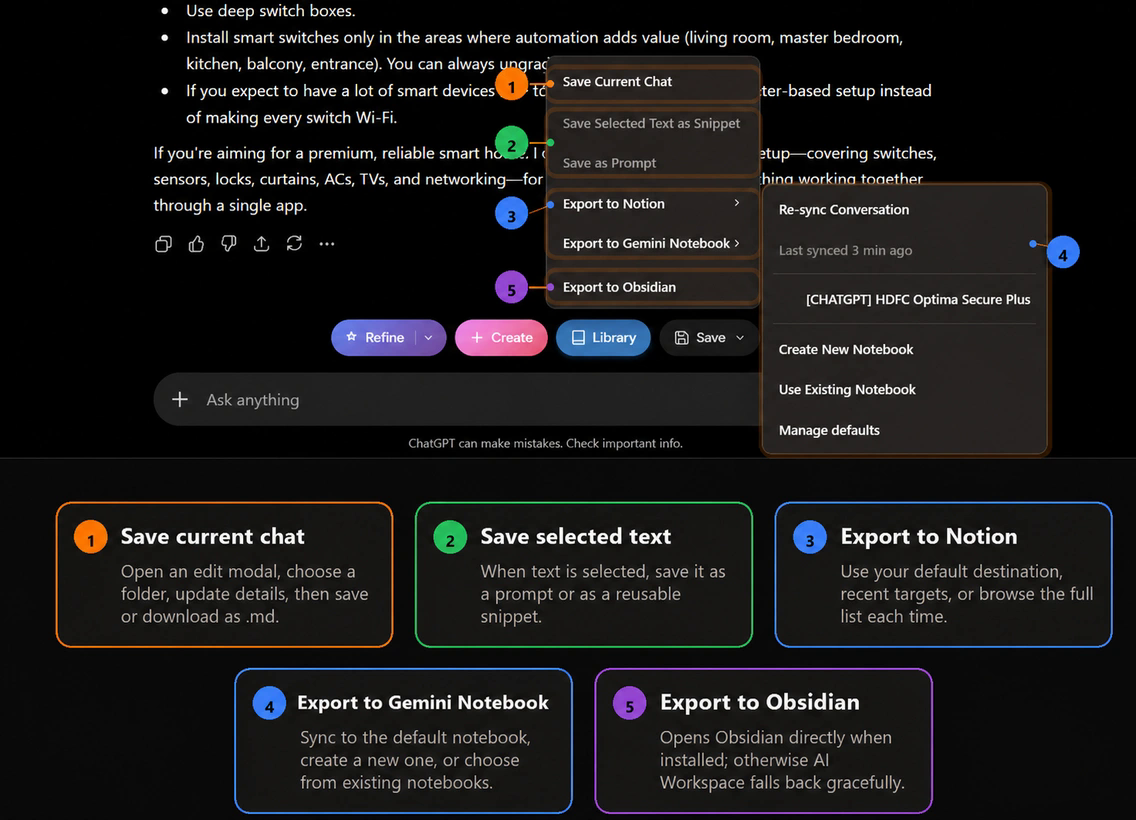
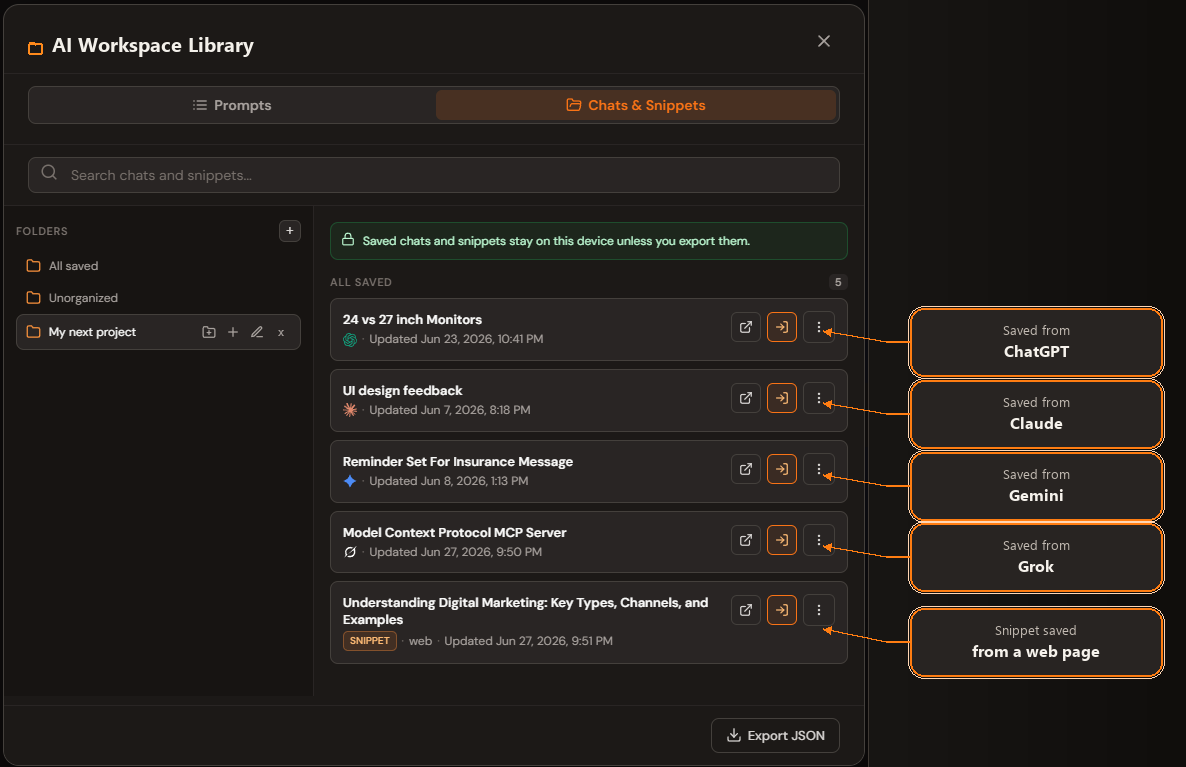
Saved chats stay in extension storage on your device unless you export them. When a conversation should live somewhere more permanent, export it to Notion, Gemini Notebook, Obsidian, Markdown, or JSON. To pick up the thread later in any supported AI, type /// and choose the saved chat to insert it as context.
Make it a habit
The system only works if saving is faster than forgetting. Keep the save action where you already are, use a handful of folders rather than dozens, and spend five minutes a week renaming or deleting anything you saved in a hurry.
For portable, tool-independent copies, read how to export AI chats to Markdown. To move a saved chat into another assistant, see how to move a conversation from ChatGPT to Claude or Gemini. For a folder structure that holds up, read how to organize ChatGPT chats into folders. Using other assistants too? See backing up Claude conversations and saving Gemini chats.
Never lose a useful AI chat again
Save conversations from ChatGPT, Claude, Gemini, and Grok into one searchable library.
Add AI Workspace to Chrome