
Why Gemini chats go missing
People usually notice the problem when they go back for an answer and it is not in the sidebar. The common reasons:
- Gemini Apps Activity is off. This setting controls whether your conversations are kept in your Google account. With it off, new chats are generally not kept in your history once you leave them, so they cannot be reopened later.
- Activity was deleted. Google lets you delete Gemini activity by hand or on an automatic schedule. Chats older than the period you chose disappear from the list.
- A different account. Gemini history belongs to the Google account you were signed in with. A work account and a personal account have separate histories, and an administrator may control the settings on a work or school account.
- The list is long. The chat still exists, but you cannot find it among hundreds of others.
Google's help pages describe exactly how these settings work today, including how long data may be kept for Google's own purposes. Check them for your account rather than relying on assumptions.
Check your Gemini activity settings first
If you want Gemini itself to keep your history, make sure Gemini Apps Activity is on for the account you use, and review any auto-delete period. There are good reasons to keep it off, such as privacy or a workplace policy. If that applies to you, treat every Gemini chat as temporary and save the ones you need as you finish them.
No tool can recover a conversation Gemini did not keep. The reliable habit is to save a copy at the end of any chat you might need again.
Save Gemini chats with AI Workspace
AI Workspace is a Chrome extension that adds a small toolbar next to the input box in Gemini, ChatGPT, Claude, and Grok. It keeps the chats you choose in a library on your device, separate from your Google account.
- Install AI Workspace and open the Gemini conversation you want to keep.
- Open the Save menu next to the chat input and choose Save Chat to Library.
- Give it a clear title, pick a folder, and add tags or a note if useful.
- To keep only one answer, select it and save it as a snippet.
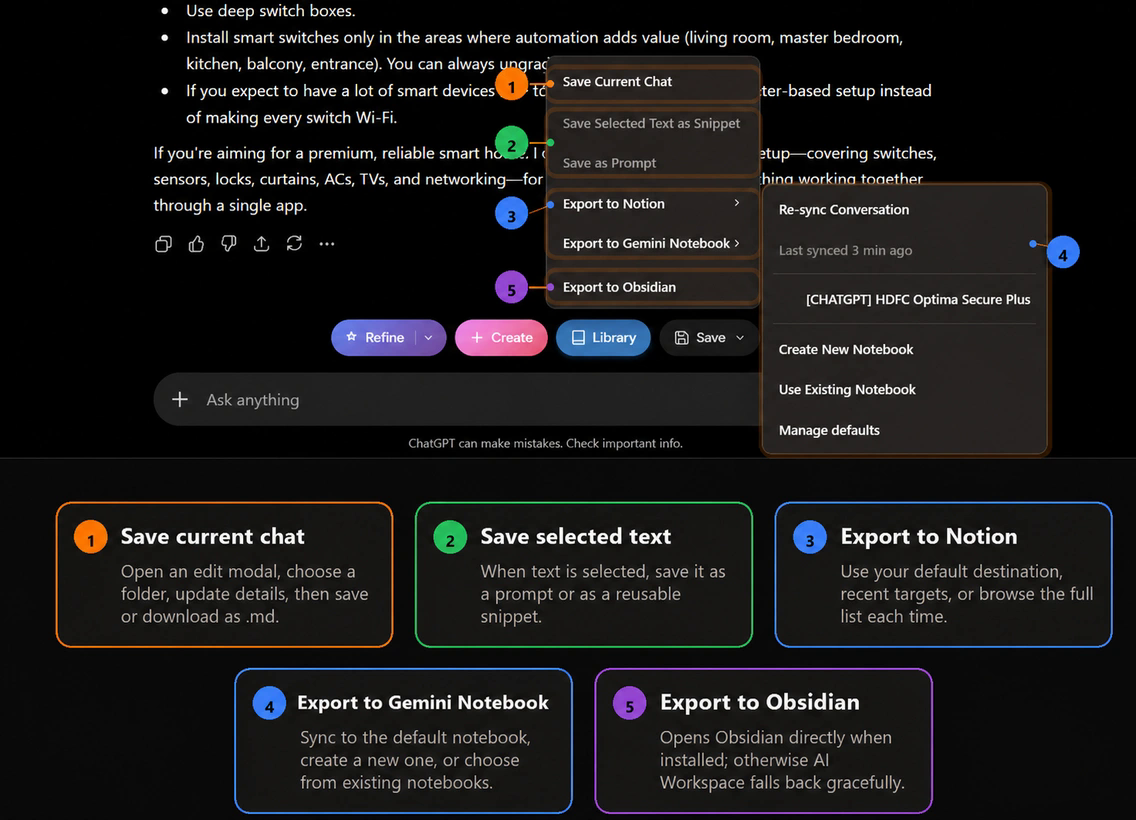
If your Gemini history is on and you want to keep many chats, the Chats tab in the library has an Import chats action that loads your recent Gemini history so you can save it in one pass. Loading older history requires Lifetime Workspace.
Saved chats stay in extension storage on your device unless you export them. Once a chat's content is saved in AI Workspace, changing your Gemini activity settings or deleting Gemini history does not remove that copy.
Export copies you can keep anywhere
A browser library is convenient for day-to-day use. For anything important, also keep a copy outside the browser. From a saved chat, or from the Save menu while the chat is open, you can export to Markdown or JSON files, or send it to Notion, Obsidian, or Gemini Notebook (NotebookLM).
- For a portable archive, read exporting AI chats to Markdown.
- For a notes vault, read saving AI chats to Obsidian.
- For a team workspace, read exporting AI conversations to Notion.
- To ask questions across several Gemini chats, read exporting chats to NotebookLM.
The Chats tab also has Export backup, which downloads your saved chats library as one file you can restore later. Backup files are not encrypted, so store them somewhere safe.
Reuse a saved Gemini chat
A saved chat is also useful as context. Type /// in the input box of Gemini, ChatGPT, Claude, Grok, or Perplexity, search your saved chats and snippets, and insert one. This lets you continue a Gemini conversation in a new chat, or hand it to another assistant. Moving a conversation between AI tools covers the handoff in more detail.
A simple habit
- At the end of a Gemini chat, ask whether you will need it again.
- If yes, save it with a title you would search for.
- File it in a project folder. Organizing chats into folders suggests a structure.
- Export the important ones to Markdown or your notes app.
- Remove personal data and secrets before a chat goes into a shared tool.
Free and Lifetime limits
The free plan includes unlimited manually saved chats and Markdown and JSON downloads, plus a limited number of external exports to Notion, Gemini Notebook, and Obsidian. Lifetime Workspace is a one-time $59.99 upgrade with unlimited supported exports, unlimited folders, prompt sync, and direct and bulk Gemini Notebook actions. See pricing for the full list.
Doing the same for other assistants? Read keeping important ChatGPT chats from getting lost or how to back up Claude conversations.
Keep your Gemini chats
Save Gemini conversations to a local library and export them to Markdown, Notion, or Obsidian before they disappear.
Add AI Workspace to Chrome