
When a backup matters
Most people think about backing up Claude at a specific moment: before cancelling or downgrading a plan, before closing an account, when a company is moving to a different AI tool, or after realising that months of project work only exist in one sidebar. In each case the question is the same. If Claude were gone tomorrow, which conversations would you miss?
Usually it is a short list: a long research thread, the reasoning behind a decision, code that took an afternoon to get right, or a writing project with many revisions. Those are the chats worth backing up properly.
What Claude's own data export gives you
Claude offers a data export in its account settings. You request it, and Claude prepares a download of your account data, including your conversations. It is worth doing once as a complete archive, especially before you close an account.
Be realistic about what you get. The export is a bulk archive of raw JSON covering every conversation at once. It is built for completeness, not for reading. Finding one chat means searching through structured data, and there is no simple way to open a single conversation as a clean document, send it to your notes app, or paste it into another assistant.
Keep the official export as a complete backup, and keep readable copies of the conversations you will actually use. They solve different problems.
Save individual Claude chats with AI Workspace
AI Workspace is a Chrome extension that adds a small toolbar next to the input box in Claude, ChatGPT, Gemini, and Grok. It saves the conversations you choose into a local library on your device.
- Install AI Workspace and open the Claude conversation you want to keep.
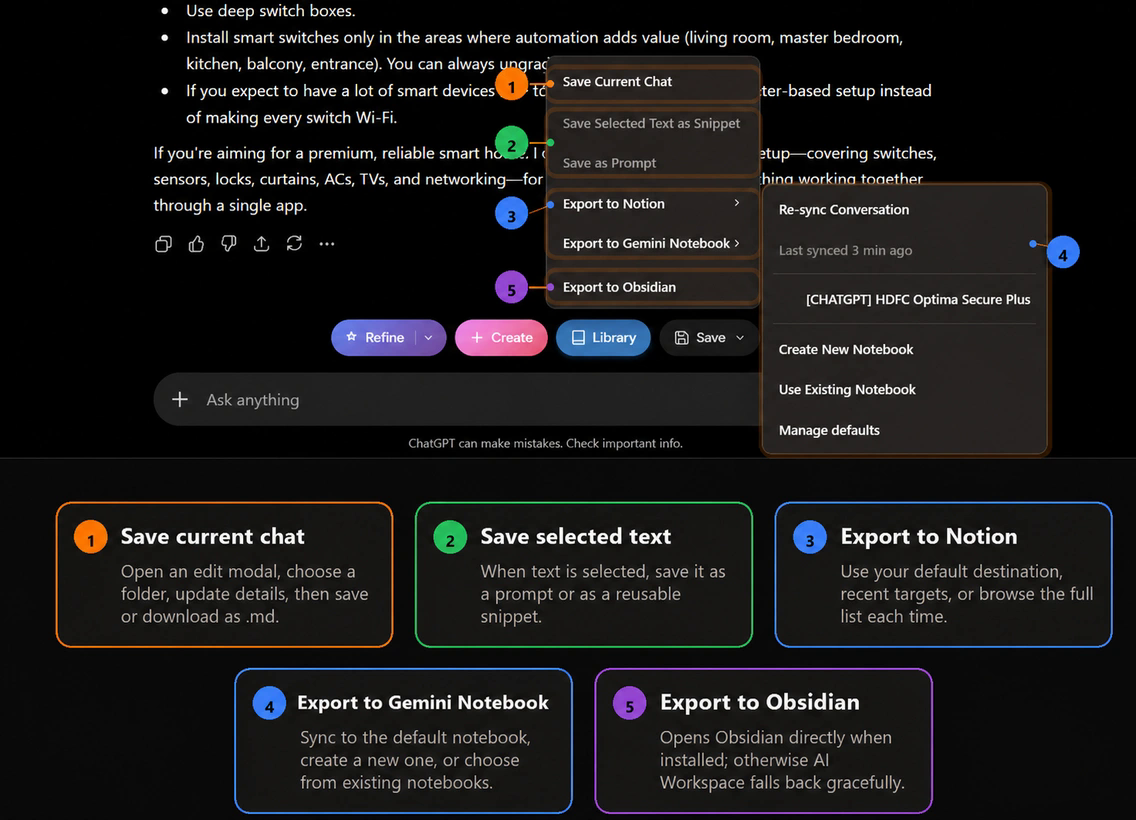
- Open the Save menu next to the chat input and choose Save Chat to Library.
- Give it a title you would search for, and pick a folder, for example one per project or client.
- Repeat for the other chats on your list. To keep only one answer, select it and save it as a snippet instead.
If you have many chats to keep, the Chats tab in the library also has an Import chats action on Claude, ChatGPT, Gemini, and Grok. It loads your recent history so you can save it in one pass. Loading older history requires Lifetime Workspace.
Saved chats stay in extension storage on your device unless you export them. They are not uploaded to an AI Workspace server.
Export to a format you can open later
A local library is convenient, but a real backup should also exist outside the browser. From a saved chat, or from the Save menu while the chat is open, you can export to:
- Markdown: a plain
.mdfile that any text editor can open. The best choice for long-term archives. See exporting AI chats to Markdown. - JSON: structured data, useful if you want to process chats with your own scripts.
- Notion: a page in a workspace you already use. See exporting AI conversations to Notion.
- Obsidian: a Markdown note in your vault. See saving AI chats to Obsidian.
- Gemini Notebook (NotebookLM): a source you can ask questions about later. See exporting chats to NotebookLM.
To back up several chats at once, open the Chats tab, select the chats you want, and export them together as one Markdown file. The Chats tab also has Export backup, which downloads your saved chats library as a file you can restore later with Restore backup. Backup files are not encrypted, so store them somewhere safe.
Carry a saved chat into another AI
If you are leaving Claude for another assistant, a backup is only half the job. You also want to continue the work. In ChatGPT, Gemini, Grok, Perplexity, or Claude itself, type /// in the input box, search your saved chats and snippets, and pick one. AI Workspace inserts it as context so the new assistant can pick up where you left off.
For long threads, a short handoff summary often works better than the full transcript. How to move a conversation from ChatGPT to Claude or Gemini has a prompt for that, and it works the same in the other direction.
A checklist before you cancel
- Request Claude's data export and keep the download somewhere safe.
- List the conversations you will actually reopen. Projects, decisions, code, and research are the usual ones.
- Save each of those with a clear title and a project folder.
- Export them to Markdown, Notion, or Obsidian so a copy exists outside the browser.
- Copy any project instructions or reusable prompts into your prompt library. Organizing an AI prompt library covers how.
- Remove secrets and personal data before a chat goes into a shared or synced tool.
Free and Lifetime limits
The free plan includes unlimited manually saved chats and Markdown and JSON downloads, plus a limited number of external exports to Notion, Gemini Notebook, and Obsidian. Lifetime Workspace is a one-time $59.99 upgrade with unlimited supported exports, unlimited folders, prompt sync, and direct and bulk Gemini Notebook actions. See pricing for the full list.
Doing the same for ChatGPT or Gemini? Read keeping important ChatGPT chats from getting lost or how to save Gemini chats.
Keep the Claude chats that matter
Save Claude conversations into a local library, export them to Markdown, Notion, or Obsidian, and reuse them in any AI with ///.
Add AI Workspace to Chrome