
What the built-in sidebar and projects cover
ChatGPT, Claude, and Gemini each list your conversations in a sidebar, newest first. Each offers some way to tidy that list, and the exact options change as the products evolve:
- Search finds a chat when you remember a distinctive word from it.
- Renaming and pinning help with a handful of chats you use every day.
- Projects in ChatGPT and Claude group chats with shared files and instructions. They work well for active work. They are less suited to filing hundreds of finished conversations, and they do not reach across tools.
- Archive and delete shorten the list but do not organize what remains.
The bigger limit is that each tool keeps its own history. A project that spans a ChatGPT research thread, a Claude writing session, and a Gemini chat about a spreadsheet ends up in three places, with no single folder holding all of it.
A folder structure that holds up
Before you create folders, decide what they represent. The structure that tends to last is one folder per project, client, course, or area of responsibility. Avoid folders per AI tool: you will remember the project long after you have forgotten which assistant you used.
- Start with five or fewer folders. Add more only when one becomes hard to scan.
- Use subfolders for long projects, for example Research, Drafts, and Decisions inside a product folder.
- Keep an Inbox or Unsorted folder for chats you saved in a hurry, and clear it weekly.
- Title chats for search. "Q4 pricing decision" is easier to find than the auto-generated title.
Chats are records of work. Prompts are tools you reuse. Keeping them apart makes both easier to find. How to organize an AI prompt library covers the prompt side.
Save chats into folders with AI Workspace
AI Workspace is a Chrome extension that adds a small toolbar next to the input box in ChatGPT, Claude, Gemini, and Grok. It keeps saved chats in one library on your device, with folders that follow your projects.
- Open the chat you want to keep and choose Save Chat to Library from the Save menu.
- Set a title, and add tags or a short private note if they help.
- Pick a folder, or create a new one.
- Done. The chat is saved with a label showing which AI it came from.
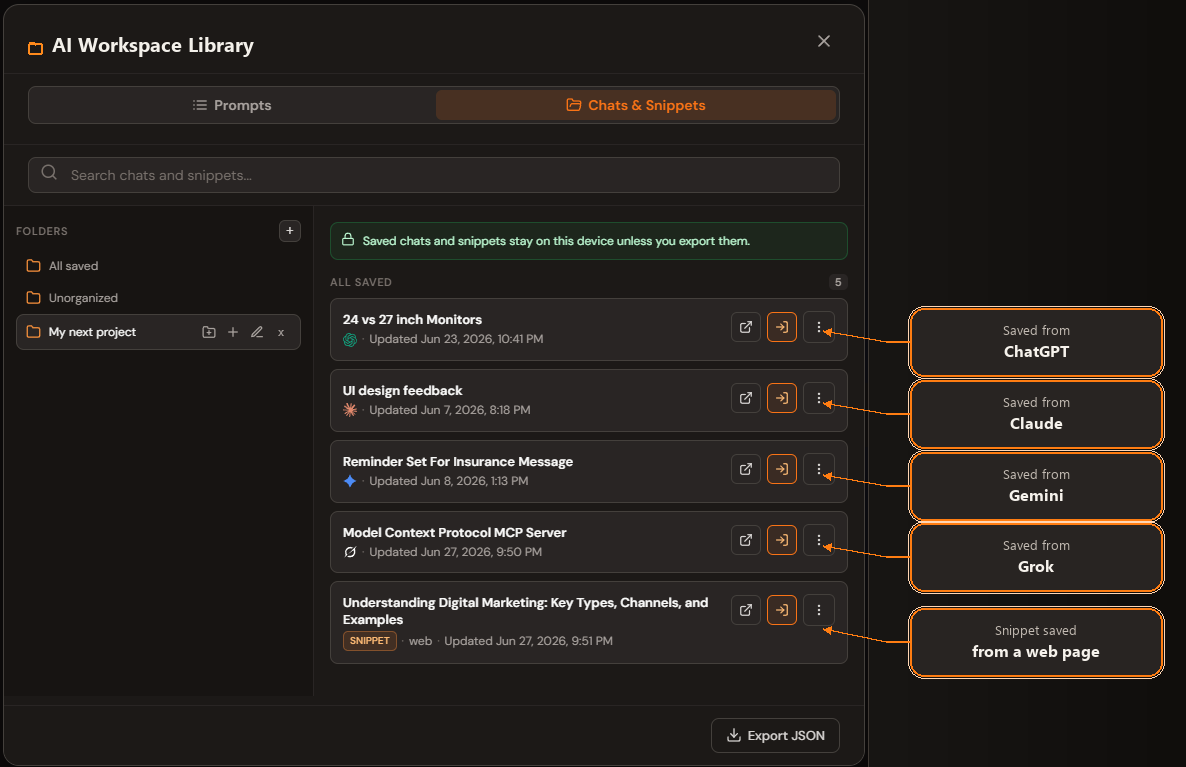
Already have chats saved? In the Chats tab of the library, select several and use Move to folder, or open a folder and add saved chats to it. You can also save a selected passage as a snippet and file it in the same folder as the chat it came from.
Find chats with search
The library search looks at chat titles, tags, notes, the AI a chat came from, and the text of the conversation itself, and it covers chats and snippets together. Matches in titles and tags rank higher than matches deep in the transcript, which is another reason to give chats clear titles.
You can also search from inside an AI chat. Type /// in the input box of ChatGPT, Claude, Gemini, Grok, or Perplexity to search saved chats and snippets, then insert one as context. That makes your folders useful for ongoing work, not only for storage. Moving a conversation between AI tools explains that workflow in more detail.
Export a folder
Once a project is finished, or when someone else needs the material, export the whole folder:
- Open the folder in the Chats tab of the library.
- Use Select all to select every chat and snippet in it.
- Open Export and download them as one Markdown file, or use Export selected to choose a format such as JSON.
For a knowledge base, you can send chats to Notion, Obsidian, or Gemini Notebook (NotebookLM) instead. See exporting to Notion, saving to Obsidian, or exporting to NotebookLM.
Free and Lifetime limits
The free plan includes unlimited manually saved chats and up to five chat and snippet folders. Folders can be nested up to two subfolder levels deep. Lifetime Workspace is a one-time $59.99 upgrade with unlimited folders, unlimited supported exports, prompt sync, and direct and bulk Gemini Notebook actions. See pricing for the full list.
For a broader system for keeping chats, read how to keep important ChatGPT chats from getting lost. Leaving a tool? See how to back up Claude conversations or how to save Gemini chats.
Put your AI chats in folders
Save ChatGPT, Claude, and Gemini conversations into searchable project folders, then export a folder when you need it.
Add AI Workspace to Chrome